
Brief Summary
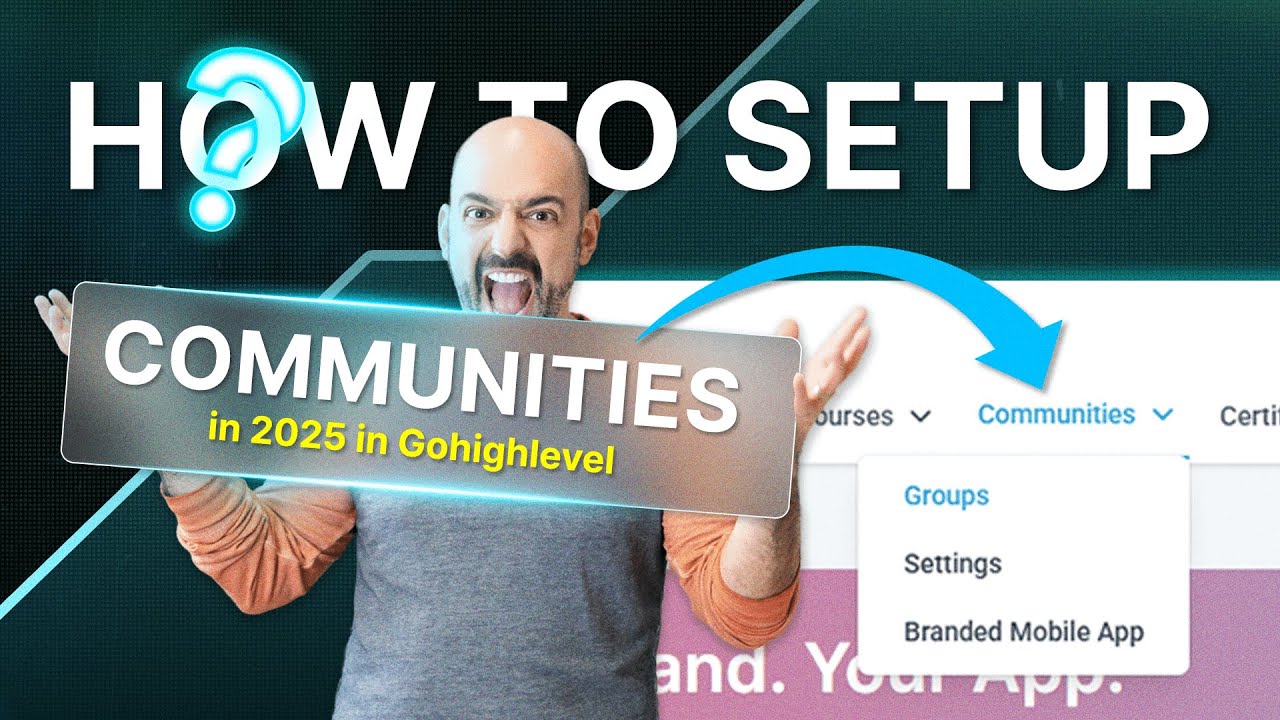
This video provides a comprehensive tutorial on building and managing a GoHighLevel community. It covers everything from setting up a custom domain and creating channels to managing members, automating rewards, and scheduling posts. The video also highlights the importance of understanding the difference between the community course area and the regular course area within GoHighLevel.
- Setting up a custom domain for branding.
- Creating channels for organised discussions.
- Automating rewards based on member activity.
- Scheduling posts for consistent engagement.
Setup Domain
To begin, it's important to set up a personalised domain for your community. This can be done by navigating to the client portal, then settings, and finally domain setup. You can either modify the existing domain provided by GoHighLevel or create a subdomain for a more personalised touch. Remember that you cannot use your main domain; instead, opt for a subdomain like "portal.yourdomain.com". After entering your desired subdomain, you'll need to add a CNAME record to your domain provider, with the host being your chosen subdomain and the required value provided by GoHighLevel.
Setup Community
To create a community, navigate to the community section within GoHighLevel. Click on "Create Group" and fill in the necessary details such as the community name, URL, and description. You can use tools like ChatGPT to generate a short description if needed. Additionally, you can add a favicon and cover image to enhance the visual appeal of your community. Once you've entered all the information, click "Create Group" to set up your community portal.
Coaching Calls: Be One of our VIPs!
The video takes a quick break to promote a VIP coaching programme that offers personalised support and resources for GoHighLevel users. This includes access to office hours, a VIP group for one-on-one assistance, a frontal brick system, a mini-course, guides, and an SOP library.
Create Channels
Once inside your community, you can create channels to organise discussions and provide specific areas for different topics. Examples include "Announcements," "New Videos," "VIP Members," and "SOPs." To create a channel, simply click on the "Create Channel" button and enter the channel name and description. You can also make channels private if needed. Organising channels helps users navigate the community and find relevant information easily.
Add Course
In the learning section, you can add courses that you want your community members to have access to. If you already have courses in GoHighLevel, you can add them here. It's important to understand the difference between the community course area and the regular course area in GoHighLevel. The community course area is specific to the community, while the regular course area contains all the courses you've ever bought or created. You can also set up paid courses within the community, allowing members to purchase additional content.
Manage Members
The members section allows you to manage your community members and control who has admin access. You can add existing users as admins or contributors. The members section also shows pending requests to join the community. You can ban members if necessary, with the option to remove all their content. The video also mentions Go Collab, an app where you can publicly advertise your community after reaching a certain number of members.
Events
The events feature allows you to schedule and promote events within your community. You can set up recurring events like office hours, specify the location (e.g., Zoom), and provide a description. You can also set reminders for members and even make events paid. The events will be displayed in the community, and members will receive notifications before the event starts.
Leaderboard
The leaderboard feature allows you to reward members based on their activity and engagement. There are nine levels in total, and you can rename them to fit your community's theme. You can also set up rewards for reaching certain levels, encouraging members to participate and contribute to the community.
About Section
In the about section, you can add a video and description to provide more information about your community. You can use a YouTube video to introduce the community and explain its purpose. The description should give new members an overview of what the community is about and what they can expect to gain from it.
Settings
The settings area allows you to customise various aspects of your community. You can change the branding, logos, and images. The theme settings allow you to choose between light and dark themes, as well as customise the primary and secondary colours. You can also add membership questions to gather information from new members when they request access to the group. Gamification and rewards settings allow you to set up levels and rewards for member participation. The links section allows you to add important links, such as an upgrade link for VIP access.
Chat With Members
The chat feature allows you to communicate directly with community members.
Discussion Area
In the discussion area, you can create posts and pin them to specific channels. This allows you to highlight important information and guide new members through the first steps. You can also move posts between channels to keep the content organised. Members can like and comment on posts, earning points for their participation.
Manage Your Account
The account management area allows users to manage their profile, account settings, social media links, and community chats.
How Members Join the Community
There are several ways for members to join your community.
Build a Workflow
You can create workflows to automate the process of granting access to the community. This can be triggered by a tag being added to a contact, a form being submitted, or a payment being received. When setting up workflows that grant access to both a course and the community, it's recommended to add a delay of at least three minutes before granting community access to ensure the course information is sent out first. You can customise the emails that are sent to new members by going to the client portal settings and editing the email templates.
Rewards Workflow
You can reward members for filling out forms by granting them community group leaderboard points. The number of points earned determines their level on the leaderboard. You can also set up workflows to reward members when they reach certain levels, such as giving them access to a free course or lead magnet.
Upgrade Workflow
For communities with VIP areas, you can create a workflow that grants access to a private channel when a member pays for a VIP offer. You can also set up a revoke subscription workflow that automatically revokes group access if a member cancels their subscription.
Automate Posts
You can automate posts within your community by using the social planner in GoHighLevel. This allows you to schedule posts in advance for different channels. You can also automate reminders for events like office hours. This feature helps you maintain a consistent presence in your community without having to manually post every day.

