
Brief Summary
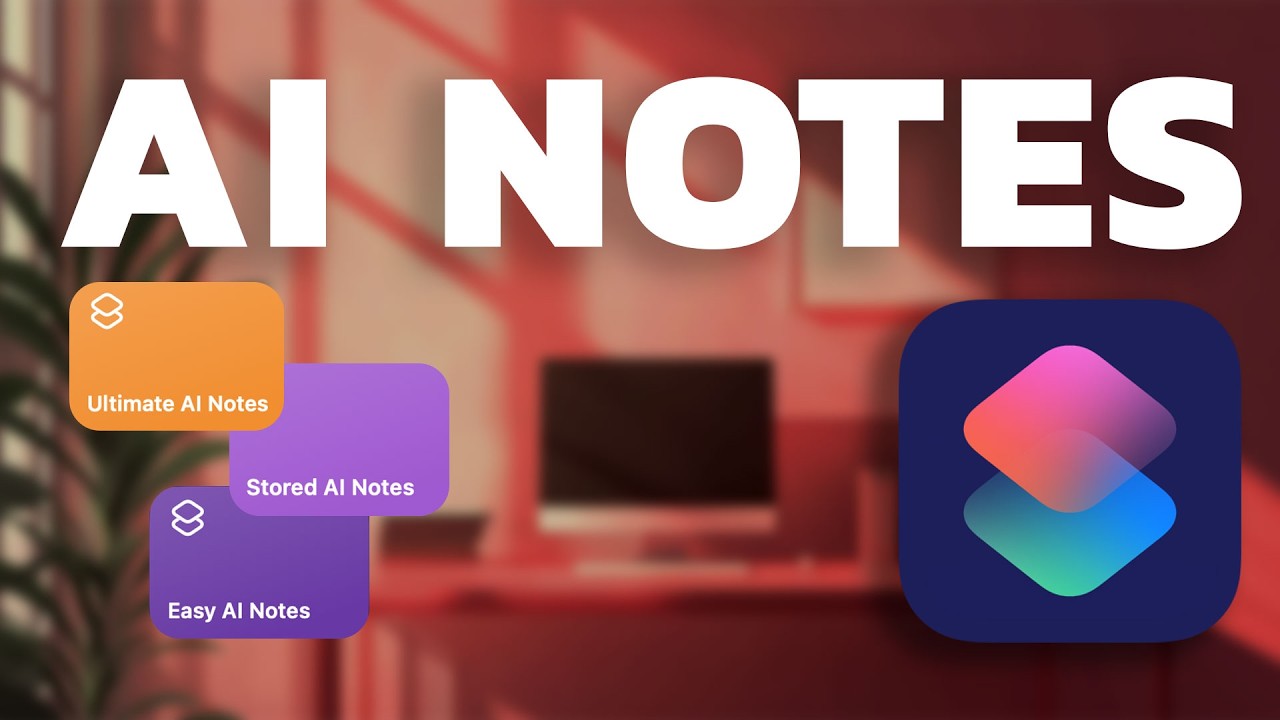
This video provides a comprehensive guide on creating an AI-powered note-taking system on iOS using native Apple apps like Shortcuts, Notes, and Voice Memos, along with ChatGPT for AI summarisation. It addresses the challenge of quickly capturing ideas and storing them efficiently. The tutorial covers three methods, starting with a basic shortcut for recording and transcribing audio, then enhancing it to save notes directly to Apple Notes and Notion. The video also tackles the issue of screen lock interruptions and offers a workaround using Voice Memos and the clipboard.
- Create AI-powered note-taking system on iOS
- Use native Apple apps like Shortcuts, Notes, and Voice Memos
- Integrate ChatGPT for AI summarisation
- Address screen lock interruptions
Intro
Mike introduces a method for high-speed note-taking on iOS devices without needing third-party apps or code. He highlights the challenge of capturing ideas quickly and the aim to create an efficient system using Apple Shortcuts, Apple Notes, Apple Voice Memos, and ChatGPT. The focus is specifically on iOS due to its more locked ecosystem compared to Android.
Setting Up the Basic Shortcut
Mike demonstrates how to set up a basic shortcut using only the Apple Shortcuts app. He begins by creating a new folder called "Note Taker" and then creates a new shortcut. The first action is to record audio, with the audio quality set to normal and the recording set to finish on a tap. The next action is to transcribe the recorded audio using the "Transcribe Audio" option in scripting, with the variable set to the recorded audio. Finally, he adds a ChatGPT action, selecting the GPT-4 model, and sets the message to summarise the transcribed audio.
Testing Our First AI Note
The user tests the newly created Apple shortcut to see if it works as an AI-powered note taker. After initiating the shortcut, the user speaks a test note, which is then processed by the shortcut, sent to ChatGPT for summarisation, and the response is received almost instantly. The user encourages viewers to like the video and subscribe for more tutorials.
Enhanced Storage Solution
Mike explains how to store the AI-generated notes for later access. He duplicates the existing shortcut and modifies it by disabling continuous chat and "show when run" in the ChatGPT action. He then adds another ChatGPT action to create a note in Apple Notes, with the content sourced from the ChatGPT output and stored in a chosen folder.
Saving AI Notes to Home Screen
The presenter explains how to save the shortcut to the home screen for easy access. By long-pressing the title and selecting "Add to Home Screen", the shortcut can be given a meaningful title and a custom icon. This allows for quick and easy access to the AI note-taking app directly from the home screen.
Testing AI Voice Notes to Apple Notes
Mike demonstrates the process of creating a note, recording it, and having it immediately saved into Apple Notes. He highlights the convenience and efficiency of the shortcut, which allows for thoughts to be captured and stored electronically without delay. The shortcut transcribes and summarises the audio, then creates a note with a headline and bullet points.
Adding AI Notes to Notion
The presenter takes the automation a step further by integrating Notion into the note-taking process. By editing the existing shortcut, a Notion action is added to create a document with a title (current date) and body (ChatGPT output), stored in a specific database. This allows the note to be simultaneously recorded, transcribed, summarised, and stored in both Apple Notes and Notion.
Lock Screen Issues
Mike addresses an issue with using Apple Shortcuts for long notes: the "Record Audio" action times out when the screen locks. This can result in the loss of the entire note. He explains that disabling screen lock entirely is not ideal and that guided access mode is cumbersome.
Using Voice Memos Integration
To address the screen lock issue, Mike introduces a workaround using Apple Voice Memos. He creates a new shortcut that gets the contents of the clipboard, sends it to ChatGPT for summarisation into bullet points, and then saves the result to Apple Notes or Notion. This method leverages the transcription feature in Apple Voice Memos.
Demo of Voice Memos & Transcription
Mike demonstrates how to use Apple Voice Memos to create notes. He starts a recording, and the iOS transcription model automatically transcribes the note. After stopping the recording, he copies the transcript and runs the "Ultimate AI Notes" shortcut, which summarises the transcript and saves it to Apple Notes.
Adding Apple Shortcuts to Control Center
To make the process more efficient, Mike adds controls to the Control Centre for quick access to Voice Memos and the AI notes shortcut. He adds a control to record voice memos and another control to run the "Ultimate AI Notes" shortcut. This allows for quick recording and summarisation of notes with minimal friction.
Final Tips
Mike summarises the benefits of using native Apple apps for AI note-taking, highlighting the ease of use and data privacy. He encourages viewers to share their own ideas and improvements in the comments and community forum. He also provides a link to another video for further viewing.

