
Brief Summary
This video provides a concise guide to 12 essential keyboard shortcuts for Windows that can significantly boost productivity. It covers window management, screenshot capture, screen recording, file exploration, virtual desktops, and security measures. By mastering these shortcuts, users can streamline their workflow, protect their information, and reduce reliance on the mouse.
- Window management shortcuts for efficient multitasking.
- Screenshot and screen recording tools for quick sharing and documentation.
- File exploration and virtual desktop shortcuts for enhanced organization.
- Security shortcut to lock your computer and protect your data.
Side-by-Side Windows (Windows + Arrow)
The "Windows + Arrow" shortcut allows users to display two windows side by side on their screen. By pressing "Windows + Arrow left" or "Windows + Arrow right," the current window is moved to the corresponding side of the screen, and the user can then select another window to fill the remaining space. This is particularly useful for comparing documents or summarizing information from one source into another.
Switching Windows (Alt + Tab)
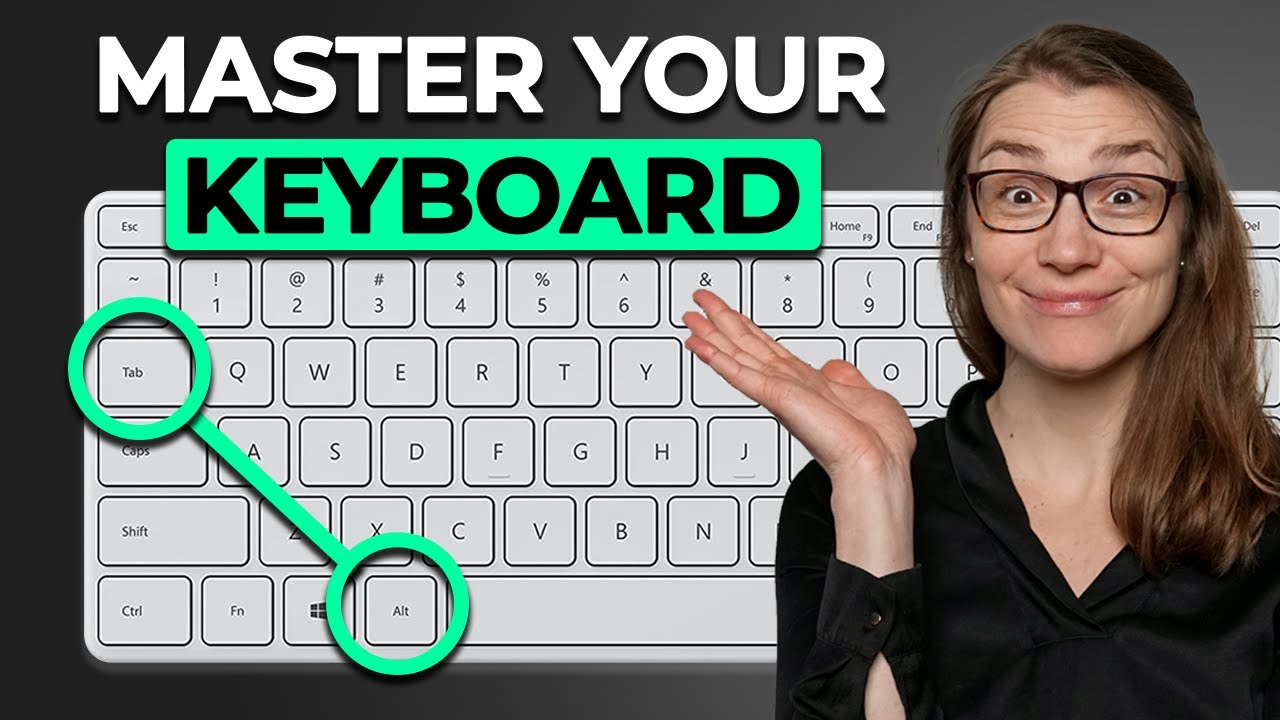
The "Alt + Tab" shortcut provides a quick way to switch between open programs. Holding down the "Alt" key and pressing "Tab" displays a list of open programs, which can be navigated using the "Tab" key or arrow keys. Releasing both keys selects the highlighted program. A quick press and release of "Alt + Tab" switches to the most recently used program, useful for alternating between two windows.
Taking Screenshots (Windows + Shift + S)
The "Windows + Shift + S" shortcut opens the Snip & Sketch tool, allowing users to capture screenshots of selected areas of the screen. After pressing the shortcut, the screen dims and a toolbar appears, offering options for rectangular, freeform, window, or fullscreen snips. The captured screenshot is saved to the clipboard and can be edited or saved.
Clipboard History (Windows + V)
The "Windows + V" shortcut opens the clipboard history, allowing users to access multiple copied items. Activating the clipboard history enables the storage of multiple text snippets and images. Pressing "Windows + V" again displays the list of clipped items, which can be inserted, pinned, deleted, or cleared.
Screen Recording (Windows + G)
The "Windows + G" shortcut opens the Xbox Game Bar, which includes a screen recording tool. Users can close unnecessary windows and focus on the capture window to record activity within a specific program. Clicking the record button captures everything within that window, and the recording can be stopped by pressing "Windows + G" again. The screencast is saved under videos and captures.
Open File Explorer (Windows + E)
The "Windows + E" shortcut instantly opens the File Explorer, providing quick access to files and documents. Alternatively, if the File Explorer is the first program pinned to the taskbar, "Windows + 1" can be used. Similarly, "Windows + 2, 3, 4" and up to "0" can open the second, third, fourth, and tenth programs pinned to the taskbar, respectively.
Virtual Desktops (Windows + Ctrl + D)
The "Windows + Ctrl + D" shortcut creates a new virtual desktop, allowing users to organize programs and windows across multiple desktops. "Windows + Ctrl + Arrow left/right" switches between the desktops. This is useful for managing multiple projects or avoiding clutter on a single screen.
Show Desktop (Windows + M or Windows + D)
The "Windows + M" shortcut minimizes all open windows to show the desktop. The "Windows + D" shortcut also shows the desktop, but pressing it again restores the minimized windows to their previous state.
Task View (Windows + Tab)
The "Windows + Tab" shortcut opens the Task View, displaying all open desktops, current windows, and a timeline of previously opened documents and programs. This provides an overview of current and recent activity, aiding in task management and navigation.
Emoji and Special Characters (Windows + .)
The "Windows + ." shortcut opens the emoji and special character pop-up, allowing users to insert emojis, special characters, and GIFs into documents. This is useful for adding symbols or characters not readily available on the keyboard.
Lock Computer (Windows + L)
The "Windows + L" shortcut locks the computer, requiring a password to regain access. This is crucial for protecting personal, confidential information when leaving the computer unattended.

