
Brief Summary
This video reveals 40 hidden features, settings, and secrets for Tesla vehicles, covering everything from remote access and convenience features to emergency functions and customization options. It includes tips on using the Tesla app, accessing hidden menus, and optimizing vehicle performance.
- Live Sentry Mode allows remote viewing and interaction.
- Hidden Auto Park feature can be unlocked with a specific sequence.
- Free Premium Connectivity can be achieved by using a mobile hotspot.
- Siri can be used to control various Tesla functions.
- A manual charge port unlock is available in the trunk.
Intro
The video introduces the concept of hidden Tesla features and settings that many owners may not be aware of, promising to reveal 40 such secrets. The host encourages viewers to engage by sharing what they already know or discover in the comments.
Live Sentry Mode
Live Sentry Mode allows users to view live camera feeds from their Tesla and speak through the car's external speaker via the Tesla app. This feature requires Sentry Mode to be enabled and a premium connectivity subscription. Users can access the live camera feed, honk the horn, flash the lights, and speak through the car's speaker remotely.
Hidden Auto Park
A hidden Auto Park feature is available for those who have purchased or subscribed to Full Self-Driving. To enable it, users must go to settings, then autopilot, customize summon, and ensure "require continuous press" is not selected. Then, when ready to park, press the parking button on the stock three times quickly to activate the hidden auto park.
Free Premium Connectivity
Users can access streaming apps, music, and karaoke without paying for Tesla's premium connectivity by turning on their phone's hotspot and connecting the Tesla's Wi-Fi to it. This method uses the phone's data plan, so an unlimited plan is recommended. However, live traffic visualization and satellite views on the maps will not be available.
Unlatch Doors
If door handles are stuck, the Tesla app can unlatch them. By long-pressing on quick controls in the app, users can find an "unlock door" button that will unlock and unlatch the door.
More Streaming Services and Games
More streaming platforms can be accessed on Tesla's internet browser by going to a better theater.com. This provides access to services like HBO Max, ESPN, Peacock, and Paramount+, as well as games like Tetris. Users can sign in to their accounts and watch content in full screen.
Control Tesla with Siri
With the Tesla app installed, users can control their Tesla using Siri. This includes asking about battery level, honking the horn, and venting windows. To enable this, users need to allow Siri to communicate with the Tesla app in their iPhone settings.
Unlock Charge Port
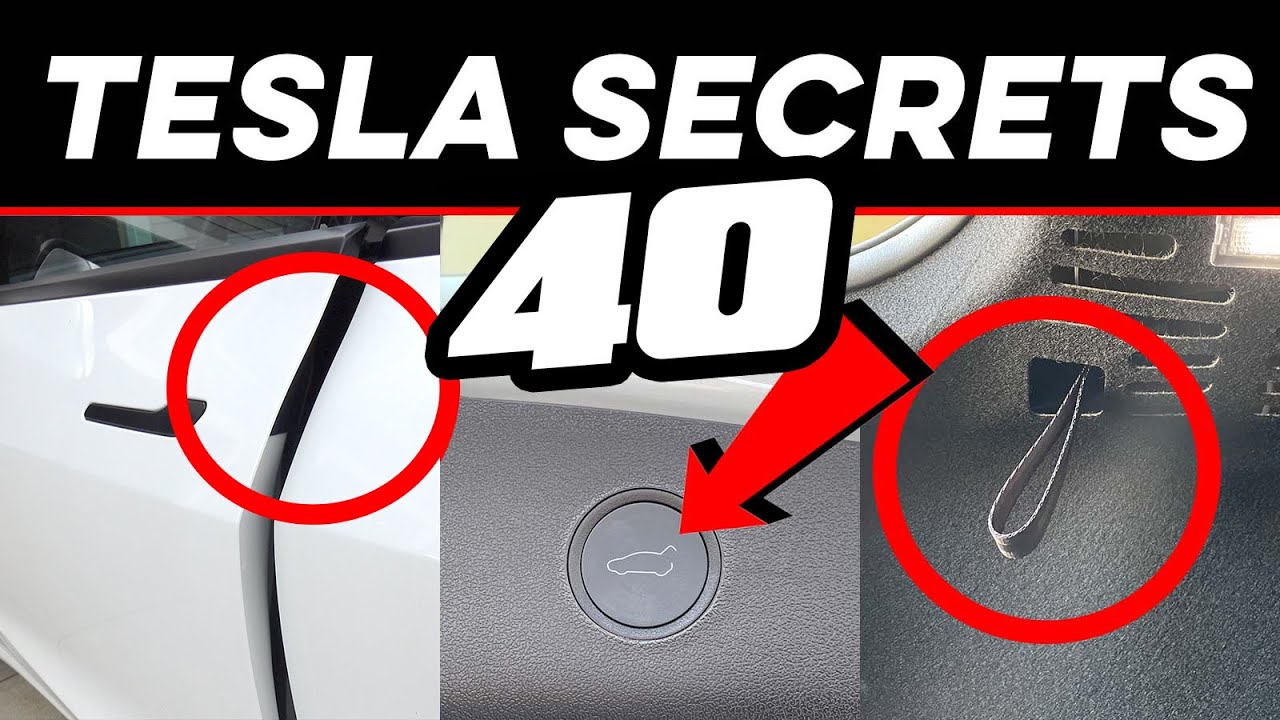
In case of a charger getting stuck in the charge port, there is a manual release. In the trunk, on the left side, there is a pull tab inside a hole. Pulling this lever will unlock the charge port and release the charging cable.
Free Full Self Driving
Full Self-Driving can be obtained for free through Tesla's referral program. Tesla owners have a unique referral code; when someone uses it to buy a Tesla, the referrer gets a minimum of 10,000 credits, redeemable for Tesla accessories, clothing, or upgrades, including three months of Full Self-Driving. Conversely, using someone else's code when buying a Tesla gets a discount and three months of Full Self-Driving.
Lower Autopilot Speed Fast
When in autopilot and exceeding the speed limit, tapping the speed limit button on the screen will quickly lower the car's speed to the speed limit or below.
Access All Cameras
All Tesla cameras can be accessed directly from the car. After ensuring the car is on the latest update, go to settings, then service, and click on the camera preview button to view every camera, including the wide, narrow, and side pillar cameras.
Send Address to Tesla
An address can be sent directly from a cell phone to a Tesla. Using Apple Maps or Google Maps, select a location, hit the share button, and share it directly to the Tesla. Addresses can also be sent from text messages or email by holding down the address, sharing it, and selecting "Share to Tesla."
Secret Menus
Tesla has a hidden service menu. To access it, go to settings, then software, and press and hold on the model of the car for 5 seconds. When prompted for an access code, type "service." This menu contains a lot of new information, but altering any settings is not recommended.
Sun Visor Extension
Tesla sun visors can be extended for additional sun blockage. Simply pull the visor out to extend it.
Switch Gears in Motion
Gears can be switched while the car is in motion. As long as the car is traveling below 5 mph (8 km/h), gears can be changed from drive to reverse or vice versa.
Parking Brake
Tesla has a parking brake that is not immediately obvious. To engage it, hold down the parking button. To disengage, put your foot on the brake and shift into drive, neutral, or reverse.
Free Data Report
In the event of an accident, Tesla can send a free data report containing information like accelerator and brake position, area of impact, steering angle, steering torque, seat belt status, and autopilot/cruise control status. It also includes footage from all cameras. A special link is required to request the report.
Hidden Headrest
Model 3 and Model Y both have hidden headrests. To open it, stick your hand in between the stock portion and push up. The Model Y's headrest can also be adjusted. To put it back down, hold the button underneath and push it back down.
Blindspot Window Location
The location of the blind spot camera video feed can be changed by dragging it around the screen.
Tesla App Quick Controls
The four quick controls on the Tesla app (unlock car, turn on AC, open charge port, open front trunk) can be customized by holding down on the settings and dragging the desired function to the top. An additional quick control can be added by pushing another control onto the edge of the screen.
Trunk Hook
Model 3s have a strange screw sticking out on the right side underneath the top of the trunk, which can be used with a grocery bag hook.
Battery and Range Icon
Tapping on the battery percentage number will toggle it to show the remaining range in miles instead. Tapping the battery icon will not work.
Battery Preconditioning
To charge at the fastest speed possible at a supercharger, input the supercharger address into the navigation. This will precondition the battery.
Tesla Widget
A Tesla widget can be added to the home screen for faster access to quick controls. By holding down the screen, selecting the plus sign, and searching for the Tesla widget, users can add a small or medium widget to their home screen.
Trip Planner
The Tesla app can be used to view nearby superchargers and plan a trip. By tapping on location, users can see a list of nearby superchargers with details like charge rate, stall availability, and price per kilowatt hour. A trip can be planned by typing in the destination, and the app will show the trip time, supercharger stops, and battery percentage upon arrival. The navigation can be sent to the car remotely.
Turn Off Climate
To quickly turn off the climate control, hold down the climate control button.
Navigate Home Fast
Swiping on the navigation input bar will reveal a quick option to navigate to either home or work, depending on the current location.
Quick Light Settings
Pushing the left stock forward will bring up a popup menu to change light settings.
Model Y Reclining Rear Seats
The rear seats in the Model Y can recline by using the same button to fold down the seats and pushing slightly backwards.
Dismiss Autopilot Prompt
When in autopilot, the prompt to grab the steering wheel can be dismissed by tapping up on one of the scroll wheels.
Slip Start
If stuck in mud, snow, or ice, traction control can be turned off by enabling slip start in settings under controls, pedals, and steering.
Set Trunk Height
The trunk can be stopped at a certain height to prevent it from hitting things. Open the trunk to the desired height, then press and hold the trunk button until it beeps. To reset the height, manually push the trunk up to the desired position and hold the button to set it.
Remote Driving Access
Remote access can be granted to someone to move the Tesla in an emergency, giving them 2 minutes to get in the car before the doors lock.
Joe Mode
Joe Mode lowers the volume of system chimes to not disturb backseat passengers. It can be enabled in the safety settings.
Tesla App Climate Controls
All climate settings can be accessed directly from the Tesla app, including activating dog mode and defrosting the car.
Gestures
In addition to swiping to get to work and home, the heat and AC settings can be adjusted by holding a finger on the arrows and going left and right. This also works with the volume.
Lost Media Bar
If the media bar is swiped down, a new icon will appear in the app drawer (a gray square with a music note). Tapping on it will make the music bar reappear.
Quick Reboot
To fix minor issues like Bluetooth connectivity problems or a slow screen, a soft reboot can be performed by holding down both scroll wheels for 5 seconds. The screen will turn black, and the Tesla logo will appear as it reboots. This can be done while driving, and no settings will be lost.
12-Volt Battery
The Tesla has a 12-volt battery that can be accessed in the front trunk by removing the plastic cover behind the storage.
Upgrade Your Tesla
Aftermarket Tesla accessories can improve style, comfort, performance, and ease of use.
Scroll Wheel Customization
The scroll wheels can be customized to quickly access functions like acceleration mode, steering wheel heater, dashcam footage saving, brightness, defrost, fan speed, temperature, glove box, and dome lights. Hold down on the left scroll wheel to see the pop-up menu. A default can be set in settings under controls, display, then scroll wheel function.
Outro
The video concludes by encouraging viewers to share any additional tips or insights in the comments and to like and subscribe for more Tesla content.

