
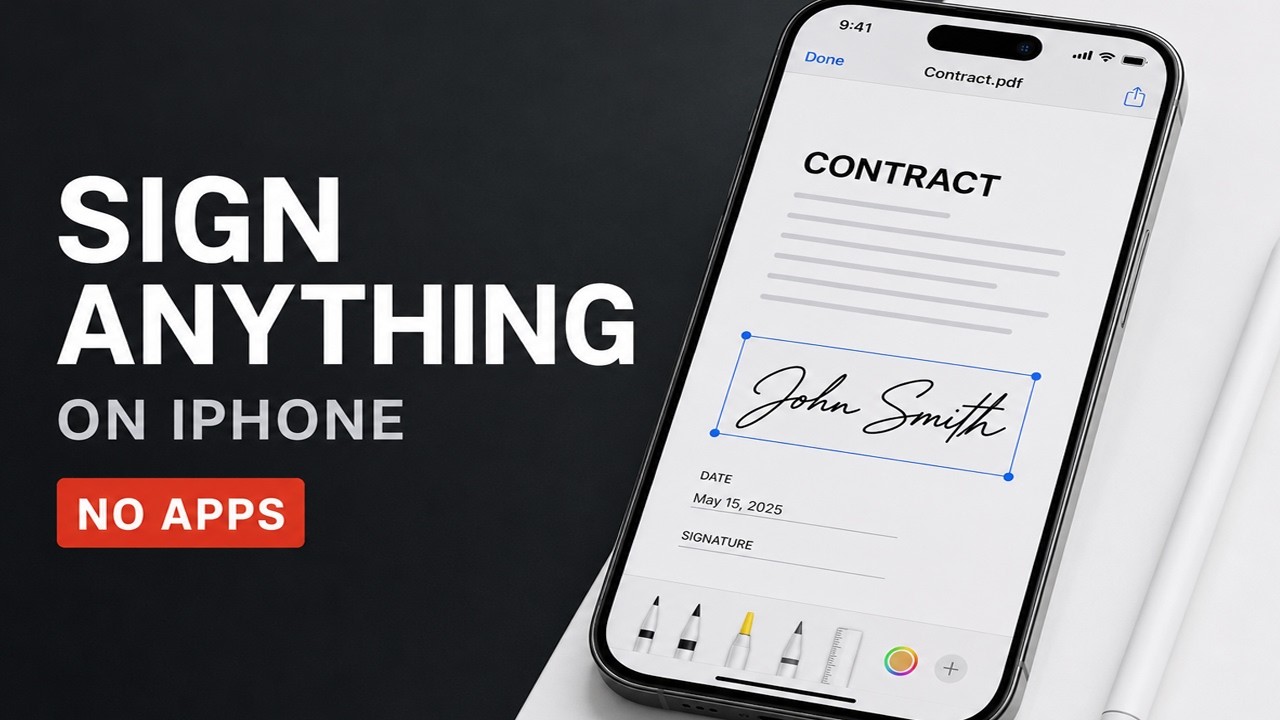
Brief Summary
This video provides a comprehensive guide on how to sign documents and PDFs on an iPhone using various methods and applications, including the Mail app, Files app, Photos app, and workarounds for blocked PDFs. It covers using the markup tool, adding and saving signatures, utilizing autofill features, and handling attachments in different email clients like Gmail and Yahoo Mail.
- Signing documents directly from the Mail app using autofill and markup tools.
- Using the Files app to save, access, and sign documents.
- Applying signatures to photos and using screenshots as a workaround for blocked PDFs.
How to Sign PDFs & Documents on iPhone
The video introduces various methods for signing documents on an iPhone, emphasizing that no additional apps are needed as the tools are built into the phone. It mentions different scenarios such as signing documents received via email, Gmail, the Files app, the Preview app, and even the Photos app. The guide promises to walk through each of these methods to demonstrate how to sign documents effectively.
How to Sign Files on iPhone with Markup
The tutorial begins with the traditional method of receiving a document via email. It advises opening the email in the Mail app and tapping on the attached PDF to open a preview. The presenter suggests saving a copy of the file to the Files app for easier access. This involves tapping the share icon, selecting "Save to Files," and choosing a folder in iCloud Drive to save the document. Once saved, the document can be accessed through the Files app, either in the "Recents" tab or by browsing to the saved folder. Opening the document in the Files app allows you to use the markup tool, which provides options for manual signing with pencils, pens, and erasers.
How to Manually Sign Documents with Your Finger
After opening the document in the Files app and accessing the markup tool, you can manually sign the document using your finger. The video demonstrates zooming in for precision and using the pencil tool to sign, initial, or date the document as needed. The undo function is highlighted as a way to correct mistakes.
How to Add and Save a Signature on iPhone
The video explains how to add and save a signature for future use. By tapping the plus icon in the markup tool, you can add a signature. If you haven't created a signature before, you'll be prompted to draw one. The presenter demonstrates creating a signature and saving it. These saved signatures can be easily inserted into documents by tapping the plus icon, selecting the desired signature, and then resizing and positioning it using the provided circles. This method also allows for adding text fields for dates or other information.
How to Fill Out and Sign PDFs with AutoFill
The tutorial explains an easier method for signing documents directly within the Apple Mail app using the autofill feature. When opening a document in the Mail app, an autofill prompt may appear, which, when selected, creates fillable boxes in the document. You can then enter text using the keyboard or add a saved signature by tapping the plus icon. After filling and signing the document, tapping the check mark provides options to reply to the email with the signed document attached or save it to files.
How to Sign Gmail & Yahoo Mail Attachments on iPhone
The video addresses the slightly more complex process of signing documents attached to emails in non-Apple applications like Gmail or Yahoo Mail. Since these apps don't offer the same autofill capabilities as the Apple Mail app, you need to first tap the attachment to view it, then use the share option to either save it to files or open it directly in markup. Regardless, the document needs to be saved. After marking up the document, you must save it to the Files app. Then, return to the email, create a reply, and attach the signed document from the Files app.
How to Sign Documents from the Photos App on iPhone
The video explains how to sign a document that is in photo format. In the Photos app, open the photo of the document and tap the edit button. Then, select the markup tool to add signatures or text. You can use either the manual pencil tool or insert a saved signature. After signing, tap done and share the photo via email. When replying to the email, attach the signed photo from your photo library.
How to Sign Blocked PDFs on iPhone (Workaround Fix)
The video provides a workaround for signing PDFs that are blocked or cannot be signed through normal methods. The solution is to take a screenshot of the document. After taking the screenshot, use the angled corners to crop the image, removing any unnecessary parts. Then, use the markup tool to add signatures or fill out the document. Save the edited screenshot to your photos and attach it to your email reply.
Files App vs Preview App Explained on iPhone
The video briefly explains the roles of the Files app and the Preview functionality on the iPhone. The Files app is where your files are stored and organized, while the Preview functionality, accessible through various apps, allows you to view and work with these files, including using the markup tool for signing and editing. The Photos app also allows for modifying and working with files.
Final Thoughts for Signing PDFs on iPhone
The video concludes by summarizing the methods for signing documents and PDFs on an iPhone, emphasizing the versatility of the built-in tools. It notes that these methods should work on any iPhone with a recent version of iOS. The presenter encourages viewers to leave comments with any specific issues they encounter while signing documents.

