
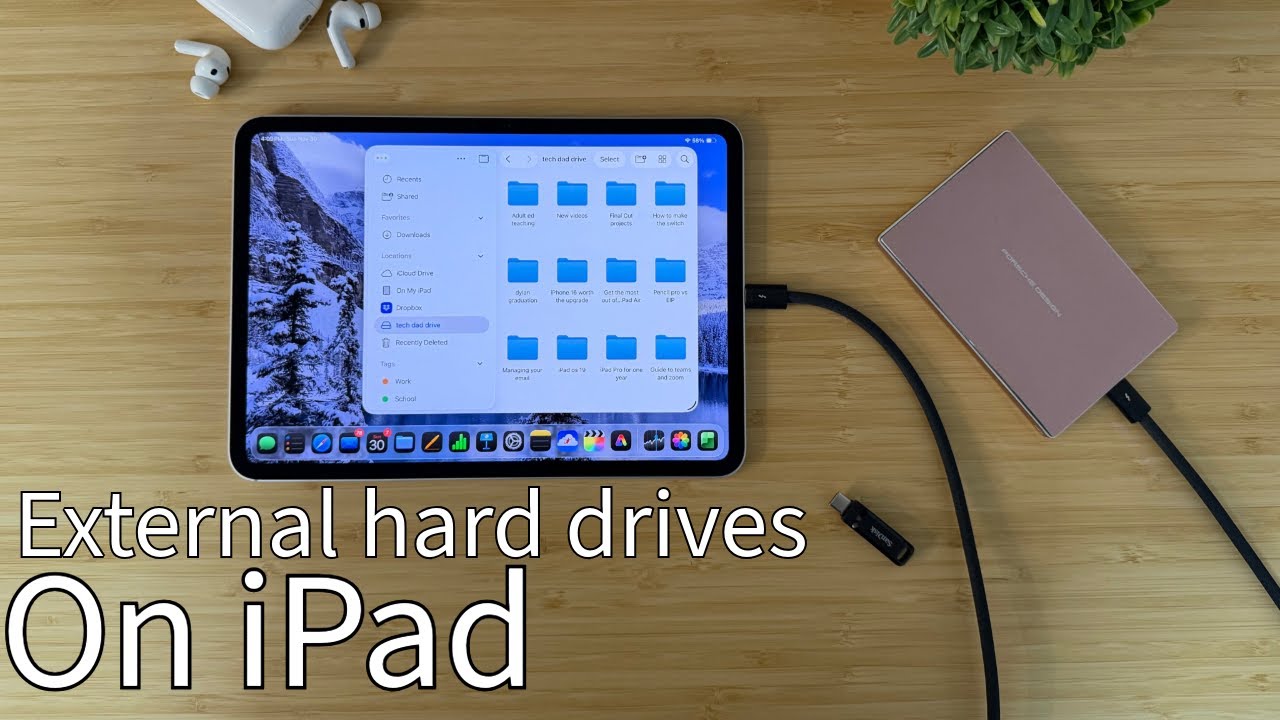
Brief Summary
This video provides a comprehensive guide on using external hard drives with iPads, covering basic access, file management, advanced features like port hubs and Thunderbolt cables, and reformatting drives. It also discusses iPad compatibility and limitations, such as the inability to install apps on external drives.
- Accessing and managing files on external hard drives connected to iPads.
- Utilizing port hubs and Thunderbolt cables for enhanced connectivity and faster data transfer speeds.
- Reformatting hard drives for compatibility with iPads, while noting limitations like the inability to create multiple partitions.
Introduction to Using External Hard Drives with iPad
The video introduces a comprehensive guide on using external hard drives with iPads, starting with the basics of accessing and moving files. It will cover advanced topics such as using port hubs, multiple drives, Thunderbolt cables, and reformatting hard drives. The guide will also discuss iPad compatibility, noting that not all iPads function the same way with external drives, with the demonstration using an M5 iPad Pro.
Accessing Hard Drives on iPad
To access a hard drive on an iPad, you can use either a powered hard drive or a simple thumb drive. Thumb drives are convenient due to their portability and lack of need for cables, though they may have slower transfer speeds compared to larger, powered external hard drives. For older hard drives with USB ports, adapters can be used to connect to the iPad. Once connected, the files app is used to access the drive.
Managing Files on External Drives
To manage files, plug the thumb drive into the iPad and open the Files app, where the hard drive should appear in the sidebar. Open a second window to drag and drop files, similar to using a Mac, by using the menu bar to open a new window and positioning the windows side by side. To select multiple files, click the three dots and then select, and then drag and drop the selected files to the desired location. iPadOS 16 provides a status bar showing the progress of file transfers.
Freeing Up Space on iPad
One effective way to free up space on your iPad is by moving photos and videos from the Photos app to an external hard drive. Open the Photos app, select the desired media, use the share button, and choose "Save to Files," then select the hard drive as the destination. After transferring, delete the files from the Photos app to free up space, ensuring they are backed up on the external drive. You can also right-click the hard drive in the Files app and select "Get Info" to view the available and used space on the drive.
Cables and Transfer Speeds
For the fastest transfer speeds, it's important to use cables that support USB-C 4 or Thunderbolt. Only the iPad Pro models support Thunderbolt connectivity, which significantly increases data transfer rates. The base iPad models can still transfer files, but at much slower speeds, around 480 megabits per second, compared to Thunderbolt's 40 Gbits per second.
Using Port Hubs and Multiple Hard Drives
Using port hubs to connect multiple hard drives is primarily feasible on iPad Pro models that support Thunderbolt and USB-C 4. A port hub, such as the Apple Studio Display, allows multiple devices to be connected simultaneously. By connecting the display to the iPad, all connected hard drives will appear in the Files app, enabling file transfers between drives. This functionality is not available on the base iPad.
Reformatting Hard Drives
You can reformat a hard drive on an iPad by right-clicking the drive and selecting "Erase." You can choose between Apple formatting system and XFAT, with XFAT intended to be readable by both Windows and Mac, though the presenter has experienced issues with iPad recognizing XFAT-formatted drives. The iPad only supports one partition per drive, meaning you cannot divide the drive into multiple segments for different uses like Time Machine backups.
Limitations of Using External Hard Drives with iPad
External hard drives are useful for moving files like documents and videos off the iPad to free up space. However, unlike a computer, you cannot install and run applications directly from an external hard drive on the iPad. While external drives can help manage storage, they cannot be used to expand the iPad's app storage capabilities.

