
Brief Summary
This video provides a comprehensive walkthrough of the Tesla app, covering everything from initial setup and key features to advanced functionalities like security settings and service requests. It explains how to download and set up the app, customize quick controls, manage charging, enhance security with Sentry Pro, and utilize various features such as climate control, location tracking, and the referral program.
- Downloading and setting up the Tesla app
- Customizing quick controls and managing charging
- Enhancing security with Sentry Pro
- Utilizing features like climate control, location tracking, and the referral program
Intro
Mike Seuss introduces a complete walkthrough of the Tesla app, highlighting its features, tips, tricks, and hidden functionalities. The Tesla app serves as a portal to control various aspects of your Tesla, including managing charging settings, viewing stats, managing drivers, scheduling services, accessing roadside assistance, tracking location, and scheduling trips. It also allows users to activate upgrades, purchase Tesla merchandise, and earn rewards. The app is available for both Apple and Android devices.
What Is The Tesla App?
The Tesla app is a comprehensive tool that allows users to control their Tesla vehicles remotely. It provides access to various functions such as managing charging settings, viewing vehicle stats and data, managing drivers, scheduling services, and accessing roadside assistance. Additionally, users can track the car's location, schedule trips, activate upgrades, purchase Tesla merchandise, and earn rewards.
How To Download The Tesla App
To download the Tesla app, search for "Tesla" in the Apple App Store or Google Play Store. The app is free to download and is typically the first result. Simply click on the app and install it on your device.
Setup
Upon opening the Tesla app, users can either sign in or create a new account. To create an account, tap "Create Account" and fill in the required information. After creating an account, enable notifications to receive essential updates from the app. To add your Tesla to the app, click the person icon at the top right, then click "Add Products." This process requires access to your Tesla, its VIN, a Wi-Fi or LTE connection, a driver's license, and proof of ownership. The addition of your Tesla to the app can take between three to five days, but sometimes it can be instant.
Phone Key Setup
Setting up the phone key feature allows you to wirelessly unlock and drive your Tesla without needing a physical key. To set it up, tap "Set Up Phone Key" in the main menu and allow the app to access your device's location. Then, tap "Pair" and place your key card on the center console. Once successfully connected, your screen will display "Phone Key Connected," enabling your car to automatically unlock as you approach and lock as you leave.
Home Screen
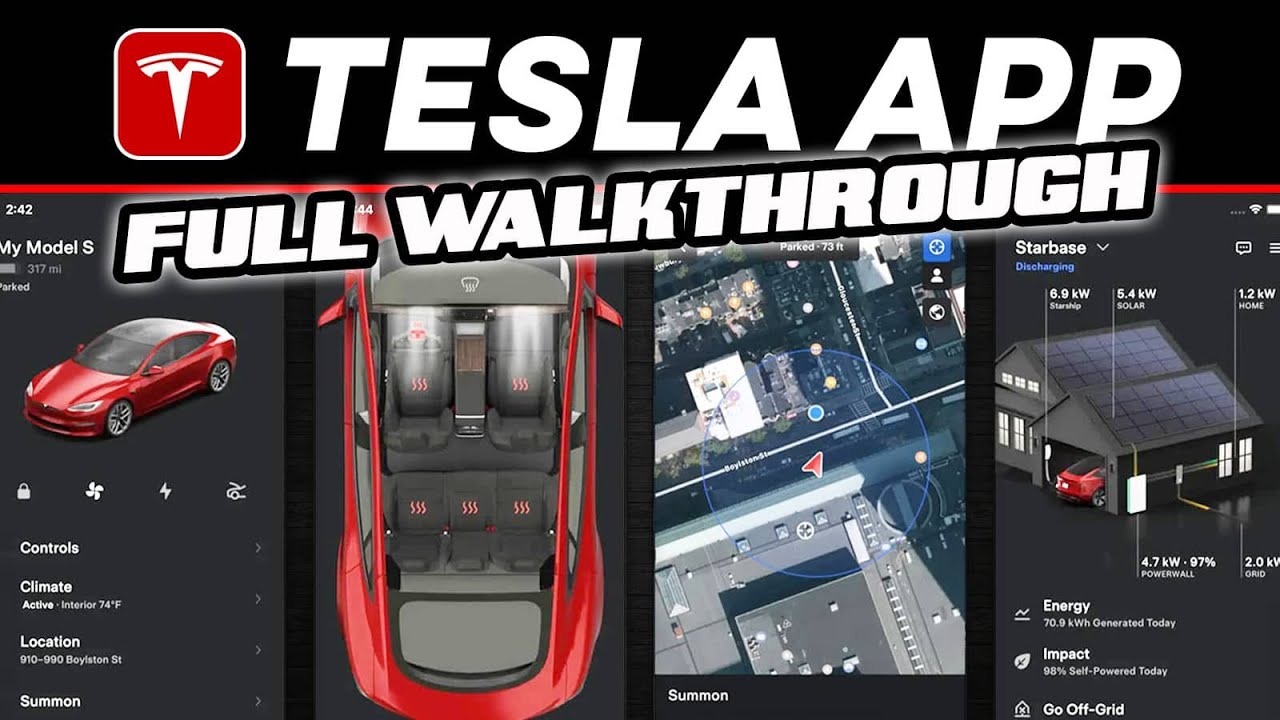
The main screen of the Tesla app displays your Tesla's name, which can be customized by holding it down. Below the name, you'll find the battery percentage and the car's status, including the remaining charge time when charging. A message button at the top right shows notifications. The drop-down menu provides access to various information, the Tesla shop, options to add other EVs to the Supercharger network, and payment details for charging and services. Payment information can be added under "Charging" and then "Manage Payment."
Controls
The main screen features a row of quick controls that can be customized by holding down on the row and dragging and dropping your preferred options. There are 13 controls available, and you can select up to four to display. When the car is charging, a box appears below the quick controls, providing charging information such as current kW, gained kWh, charging amps, and voltage. A slider allows you to set the charge limit, and options to stop charging and unlock the charge port are also available. The "Controls" section provides a remote-type screen to control your Tesla and check tire pressures.
Climate
The climate section allows you to control your Tesla's climate settings remotely. You can turn on and set the climate, view the current temperature, vent windows, turn on seat and steering wheel heaters, defrost the car, and enable Camp Mode or Dog Mode. Additionally, you can enable cabin overheating protection to cool down the interior when it becomes too hot.
Location
The location tab on the main screen displays your Tesla's current location on a map. On the right side, there are four icons: one to send directions to your Tesla, one to show your car's location, one to switch between map and satellite view, and one to display nearby Supercharger stations. You can enter an address to view navigation time and send directions to your Tesla, which is preferable to other map apps as it includes charging stops and times in the estimated arrival time.
Schedule Charging
The Schedule tab allows you to schedule charging at home, set a departure time to ensure the car is charged, precondition the battery for Supercharger stations, and enable off-peak charging to reduce energy costs.
Security and Driving
The Security and Driving tab allows you to manage phone keys, add drivers, set up Bluetooth audio connections, and manage security features. These features include adding a PIN to access your Tesla, limiting speed for added drivers, enabling Valet Mode (which restricts access for valet operators), and enabling Sentry Mode. Sentry Mode uses the car's exterior cameras to record activity and alert people it's watching. The app allows you to view a live feed of the cameras and, if equipped, speak to intruders via the exterior speaker. Sentry Pro, an additional app, provides real-time notifications of potential incidents, enhancing Tesla's security.
Charge Stats
The ChargeStats screen displays comprehensive charging information, including total daily, monthly, or yearly charge time, spending, and gas savings. At the bottom of the screen, you can access charging tips and a settings menu to enter your energy company details for more accurate charging cost calculations.
Upgrades
In the Upgrades section, you can add features to your Tesla, such as Enhanced Autopilot and Full Self-Driving Capability, either by purchasing them outright or paying monthly. Once purchased, the functions are immediately available on your Tesla. You can also add an extended service agreement and shop for accessories.
Service
The Service menu allows you to request service for your Tesla, check out video guides, and read the owner's manual. When requesting service, you can describe the issue, add pictures, and submit the request. A Tesla service team member will respond through the app to gather more details and diagnose the car remotely. If the issue cannot be fixed remotely, you can schedule a service appointment. Depending on the issue and warranty status, a service advisor may come to your house to fix it on-site free of charge.
Roadside
The Roadside menu allows you to request roadside assistance for breakdowns, flat tires, lockouts, dead batteries, and other issues. The process is similar to the service menu: you select your issue, add details, and request help. You can also review the roadside assistance policy for more information.
Additional Data
Scrolling to the bottom of the main screen reveals additional information, including your Tesla trim, mileage, VIN, and software version. There is also a link to the release notes for the latest Tesla update, along with your Tesla specs, warranty information, and a quick access button to manage drivers.
Refer and Earn
The "Refer and Earn" option is Tesla's referral program. Every Tesla owner receives a referral link to share with potential buyers of Tesla vehicles or products like the Powerwall. When someone uses your link to make a purchase, you earn points that can be redeemed for upgrades, Supercharger miles, accessories, clothing, raffles, and awards. In some cases, the buyer may also receive benefits like discounts or upgrades.
Outro
The video concludes by encouraging viewers to like the video and subscribe to the channel for more Tesla-related content. The presenter also shares his referral link for viewers to use if they plan to purchase a Tesla.

