
Brief Summary
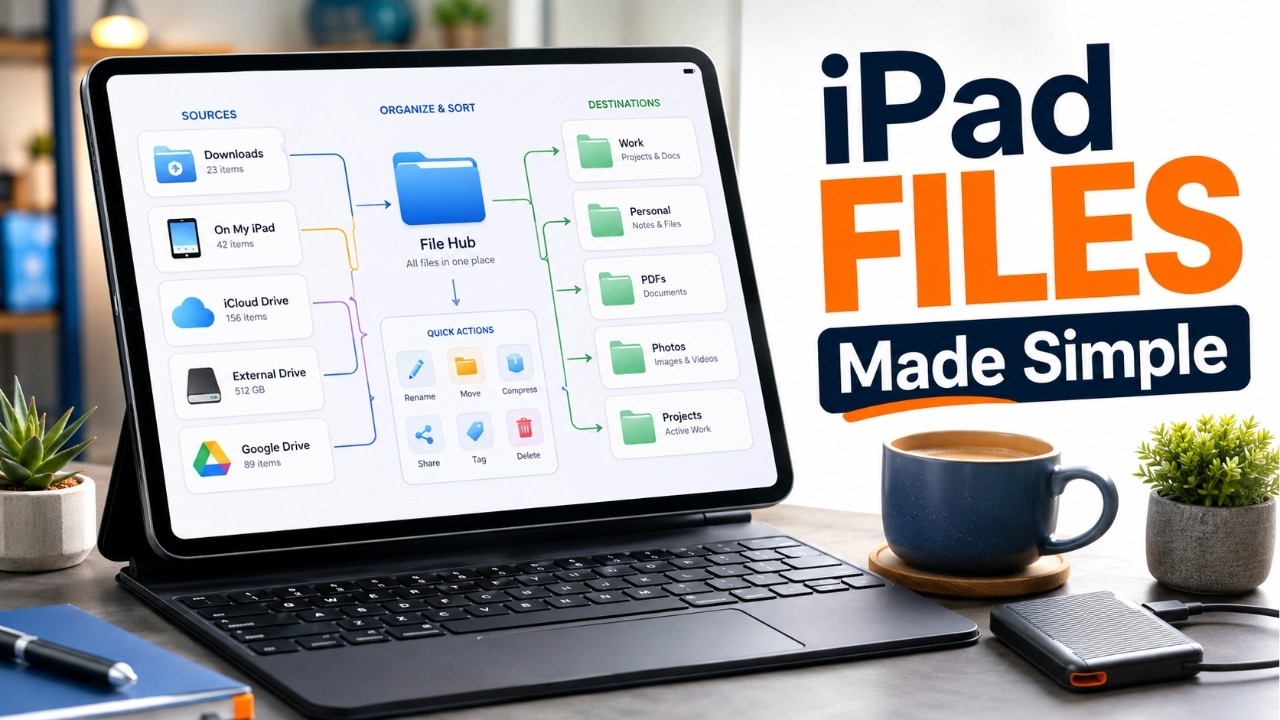
This video provides a comprehensive guide on managing files effectively on the iPad. It emphasizes the importance of understanding the Files app to prevent file chaos and improve productivity. Key points include local storage management, utilizing the sidebar, employing tagging for organization, and maximizing the use of cloud drives and external storage.
- Managing files on the iPad can be streamlined using the Files app, which functions differently from traditional desktop environments.
- Understanding the difference between iCloud Drive and local storage can help optimize file access.
- Customization options like tags and folder colors can enhance organizational efficiency.
iPad File Chaos
The video opens by discussing the struggles users face when trying to locate files on an iPad. Often, files seem to disappear after downloading or saving them, leading to frustration. It highlights that file management on the iPad is different but not inherently bad, urging users to learn how to navigate the system effectively.
Files App Basics
The narrator emphasizes the Files app's importance for managing work, school documents, and downloads. It suggests placing the Files app in an accessible location, preferably in the dock, to facilitate multitasking. The ability to use multiple windows side by side enhances efficiency, allowing users to drag and drop files easily.
Useful Section
Here, the video introduces the sidebar in the Files app, which acts as the main navigation tool. It outlines three key areas: iCloud Drive for synced files across devices, On My iPad for local files, and the Downloads folder where files from Safari usually land. Regularly checking these locations helps maintain file organization.
Sidebar Explained
The sidebar is explained in detail as a critical component of file navigation. Users are advised to regularly check the Downloads folder and move important files to designated folders. A regular cleanup routine prevents clutter and keeps the digital workspace manageable.
iCloud vs Local
This chapter clarifies the distinction between iCloud Drive and local storage, encouraging users to choose where to save files based on accessibility needs. Files that are needed on multiple devices should be saved in iCloud Drive, while files required solely on the iPad should be stored locally.
Best File Views
The video outlines three viewing options in the Files app: icon view, list view, and column view. Each view serves different purposes—icon view for visual files, list view for documents, and column view for navigating folders. It advises switching views based on the task at hand to enhance file visibility.
Sort Files Faster
Sorting files is discussed as a means to improve organization. Users can sort files by name, date, or type to quickly locate what they need. The narrator stresses that proper sorting can save time and alleviate frustration when searching for specific files.
Smarter File Setup
The narrator explains how to efficiently organize files using the drag-and-drop feature. Files can easily be moved between folders, especially using dual windows. This method simplifies the process of organizing various types of documents and media.
Tags Explained
Tagging is described as an effective way to categorize files that belong to multiple projects or topics without duplication. Users can assign relevant tags, making it easier to find related files later by tapping on a specific tag in the sidebar.
Folder Personalization
The video encourages personalizing folders with colors and icons for easier identification. Customization helps users quickly recognize the content of folders, improving efficiency in the Files app.
Cloud Drives
The narrator discusses integrating third-party cloud services into the Files app for streamlined access. Users should enable their desired cloud services in the app to manage files collectively alongside local storage and iCloud.
External Storage
Using external storage options like SSDs and flash drives is covered in this chapter. The narrator explains how to manage files from these devices within the Files app while advising caution regarding compatibility and backup practices.
Rename Everything
Properly naming files is highlighted as crucial for easily locating them later. The narrator encourages users to avoid generic names and instead opt for descriptive titles that include project names and dates for better organization and searchability.
Long Press Menu
The long press menu functions as an alternative to right-clicking, allowing users to rename, move, or share files directly. This feature is essential for enhancing file management on the iPad, especially for those using a mouse or trackpad.
Final Setup Tips
In conclusion, the narrator reassures viewers that understanding the unique layout and functionality of the Files app will make file management on the iPad less daunting. A personalized and organized approach enhances its usability for daily tasks despite some limitations compared to traditional computers.