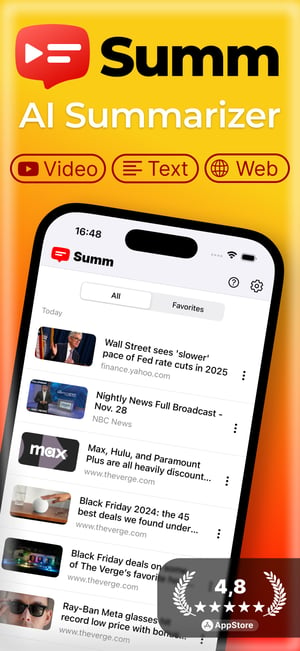
Paste a YouTube link to see the video and open its full transcript in the Summ app, with timestamps, TXT/SRT/VTT export and a 2-minute AI summary. Videos already in our library show their transcript right here.
Works with YouTube videos, Shorts, podcasts and live replays
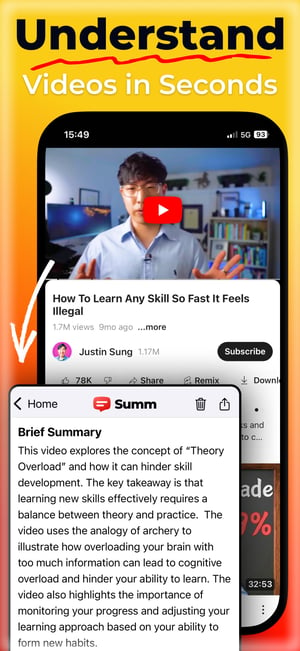
An AI summary of this video is ready
Key points, chapters and timestamps, written by Summ.
Read the summary → Get the transcript and summary of this video in Summ
- 📝 Full transcript with timestamps, export as TXT, SRT or VTT
- ⚡ 2-minute AI summary with key points and chapters
- 🎧 Listen to it, or ask questions about the video
Free on iPhone, iPad and Android. Tap Share in YouTube and choose Summ, or paste the link.
What you get
- The full transcript, split into readable paragraphs with timestamps
- Export as plain text (.txt) or subtitles (.srt, .vtt) from the Summ app
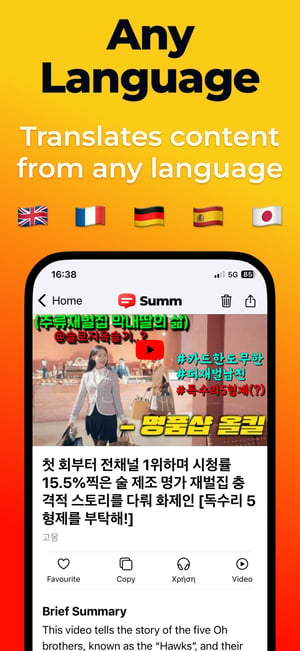
- A 2-minute AI summary with key points and chapters, in 50+ languages
- Text-to-speech, so you can listen to the summary on the go
- Works with regular videos, YouTube Shorts, lectures, podcasts and live replays
- Thousands of videos already in our library show their transcript on this site
Who uses YouTube transcripts
Students turn lectures and tutorials into study notes. Writers and journalists pull exact quotes. Marketers repurpose videos into blog posts, newsletters and social posts. Researchers search long interviews for a single mention. People who are deaf or hard of hearing, or who just prefer reading, use transcripts to follow a video without sound.
A transcript is also the fastest way to check if a 40-minute video actually covers what you need before you commit to watching it.
Transcript vs. summary
A transcript is every word that was said. A summary is the short version: the main points in a couple of minutes of reading. If you need the gist rather than the full text, try the YouTube Summarizer or the Summ app, which writes summaries with key points and timestamps.
Where the transcript comes from
Summ uses the captions published with the video. These can be written by the creator or generated automatically by YouTube. Creator captions are usually very accurate. Auto-generated captions can have small mistakes with names and technical terms.
Prefer to do it on YouTube?
On a computer, open the video, click “…more” under it, then “Show transcript”. The transcript opens next to the video and you can select and copy it. It doesn't come with a download button, a summary or export formats, which is what Summ adds. Step-by-step: how to get the transcript of a YouTube video.
Summarize any video on your phone with Summ
Share a video from YouTube to Summ and get key points, chapters and timestamps in seconds. You can also listen to the summary.
Frequently asked questions
Is it free?⌄
Videos in our library show their transcript here for free. The Summ app has a free plan with daily summaries and transcripts; Premium adds unlimited use and longer videos.
How do I get the transcript of a YouTube video?⌄
Paste the link above, or share the video to the Summ app from YouTube to get the full transcript and a summary. On a computer you can also open it on YouTube: click “…more” under the video, then “Show transcript”.
Can I download a YouTube transcript?⌄
Yes. In the Summ app, open the video's transcript and choose TXT, SRT or VTT. For videos already in our library, you can also download TXT or SRT on this page.
Does it work for YouTube Shorts?⌄
Yes. Paste a Shorts link (youtube.com/shorts/…) the same way as a normal video link.
Why is there no transcript for some videos?⌄
Some videos have no captions, because the creator turned them off or YouTube didn't generate them (common for music, very new uploads, or videos with little speech).
Can I get it in another language?⌄
The transcript is in the video's language. The Summ app can write the summary in more than 50 languages.