
Brief Summary
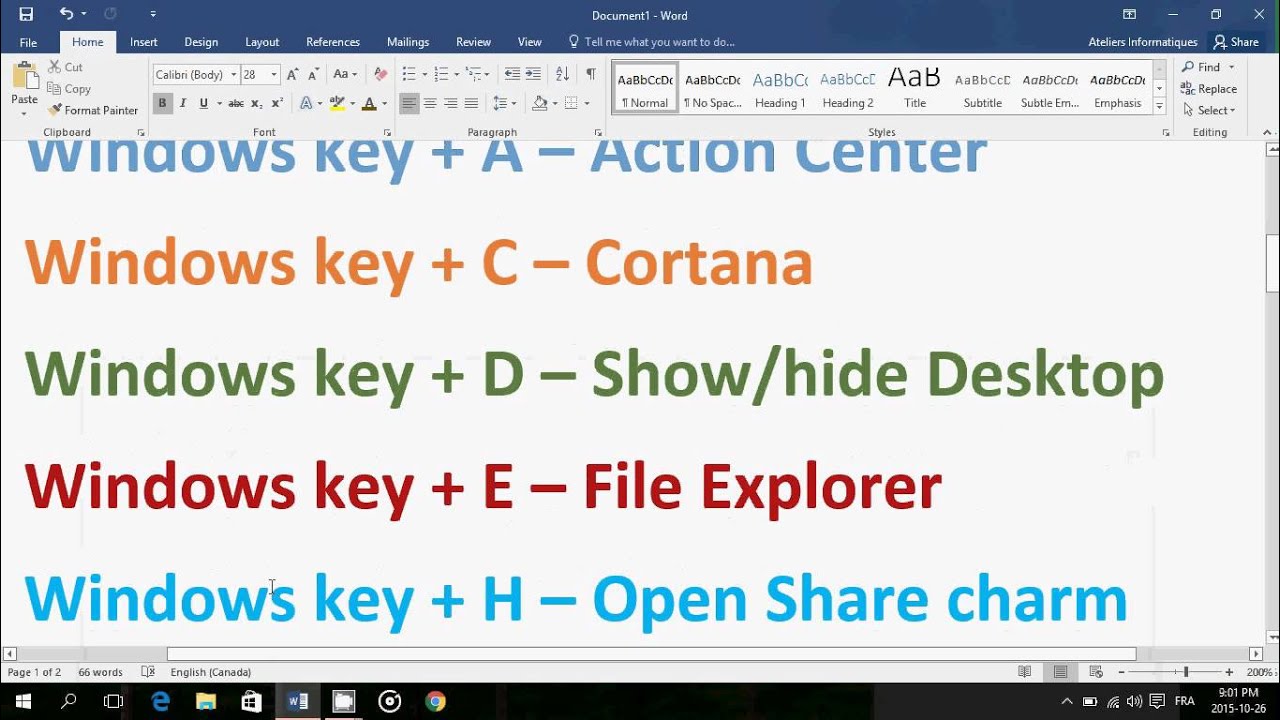
This video provides a comprehensive guide to the most useful Windows key keyboard shortcuts in Windows 10, designed to improve user experience and productivity. It covers shortcuts for accessing the Action Center, Cortana, desktop, File Explorer, share charm, settings, lock screen, search, and narrator.
- Windows key + A opens Action Center for quick access to notifications and settings.
- Windows key + D shows or hides the desktop, allowing quick access to desktop items.
- Windows key + I opens the Settings app for system configurations.
Introduction to Windows Key Shortcuts
The video introduces a series of tutorials focused on Windows key keyboard shortcuts, acknowledging that not all shortcuts will be covered in one video due to previous separate videos and future explanations tied to specific functionalities. The aim is to enhance the user experience and improve work efficiency by mastering these shortcuts.
Windows Key + A: Action Center
Pressing the Windows key and the "A" key together opens the Action Center on the right side of the screen. This provides quick access to notifications, messages, and settings, such as Twitter notifications or security and maintenance alerts.
Windows Key + C: Cortana
The Windows key combined with the "C" key launches Cortana, the virtual assistant, allowing users to make requests or give commands. Note that this shortcut may be affected by regional settings and account configurations.
Windows Key + D: Show Desktop
Using the Windows key and "D" key together either displays the desktop or returns to the previously used app or program. This shortcut allows users to quickly access desktop files or programs and then return to their previous task.
Windows Key + E: File Explorer
The Windows key plus "E" opens File Explorer, providing access to files, folders, and drives on the computer. This allows users to quickly navigate and manage their files.
Windows Key + H: Share Charm
Pressing the Windows key and "H" activates the Share charm, enabling users to share content from various apps, such as email or pictures, via different platforms like mail or social media.
Windows Key + I: Settings
The Windows key combined with the "I" key opens the Windows Settings panel, providing access to system settings and configurations, distinct from the traditional Control Panel.
Windows Key + L: Lock PC or Change Accounts
Using the Windows key and "L" locks the PC, requiring a password to regain access, or allows switching to another user account. This is a quick way to secure the computer when leaving it unattended.
Windows Key + S: Search
The Windows key plus "S" opens the search bar, enabling users to search for files, settings, and apps on their computer.
Windows Key + Comma: Peek at Desktop
Holding the Windows key and pressing the comma key offers a temporary peek at the desktop, allowing users to view items without fully switching to the desktop. Releasing the keys returns the user to the current app.
Windows Key + Enter: Narrator
The Windows key combined with the Enter key launches Narrator, a screen-reading tool that reads on-screen text aloud, which is particularly useful for users with disabilities or visual impairments.
Conclusion
The video concludes by encouraging viewers to try out these Windows key shortcuts to enhance their computer experience and productivity, noting that while some shortcuts may work on Windows 8, most are specific to Windows 10. The presenter encourages viewers to subscribe for more content, like the video, and ask questions or suggestions in the comments.

